Key takeaways
- Google Search Console is free, and in our experience the hands-on setup takes under an hour, though Google says a new DNS record can take two to three days to go live.
- Set it up under a Google account your business controls and stay the verified owner, so no vendor ever holds your data.
- Use a Domain property verified by DNS so every version of your site (www, non-www, http, https) reports in one place.
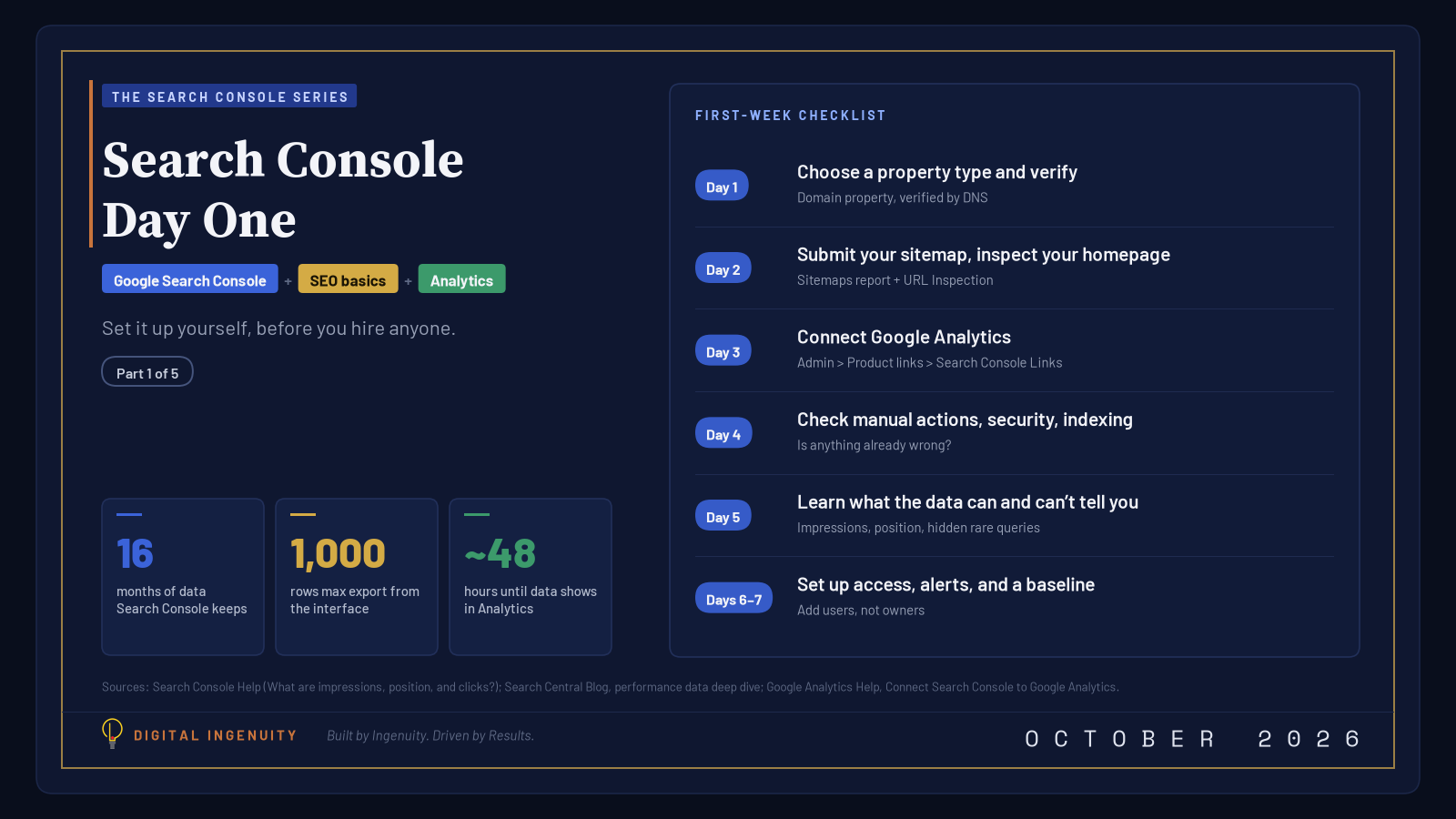
- In week one: verify, submit your sitemap, link Google Analytics, check manual actions and indexing, then record a baseline.
- Give agencies Full or Restricted user access later, never ownership.
Before you hire an SEO agency, a consultant, or anyone else, set up Google Search Console yourself. It’s free, in our experience the hands-on part takes less than an hour, and it’s the only place you get data about how Google crawls, indexes, and shows your site, straight from Google. Once it’s set up in your name, every conversation you have with a vendor starts from your own data instead of theirs.
This guide is the first-week checklist we’d give a friend who runs a small or mid-sized business. It follows Google’s own Search Console documentation, step by step.
Key points
- Search Console is a free Google service. You don’t need it to appear in Google, but it’s how you see what Google sees.
- Set it up under a Google account your business controls, and stay the verified owner.
- A Domain property, verified through DNS, covers every version of your site in one place.
- The first week is about baselines and access, not about fixing everything.
- Give vendors user access later. Never hand over ownership.
Why you should set it up, not your agency
Google describes Search Console as a free service that helps you “monitor, maintain, and troubleshoot” your site’s presence in Search. The Search Console help center goes further and says business owners should know it exists and what it offers, even if they never log in themselves.
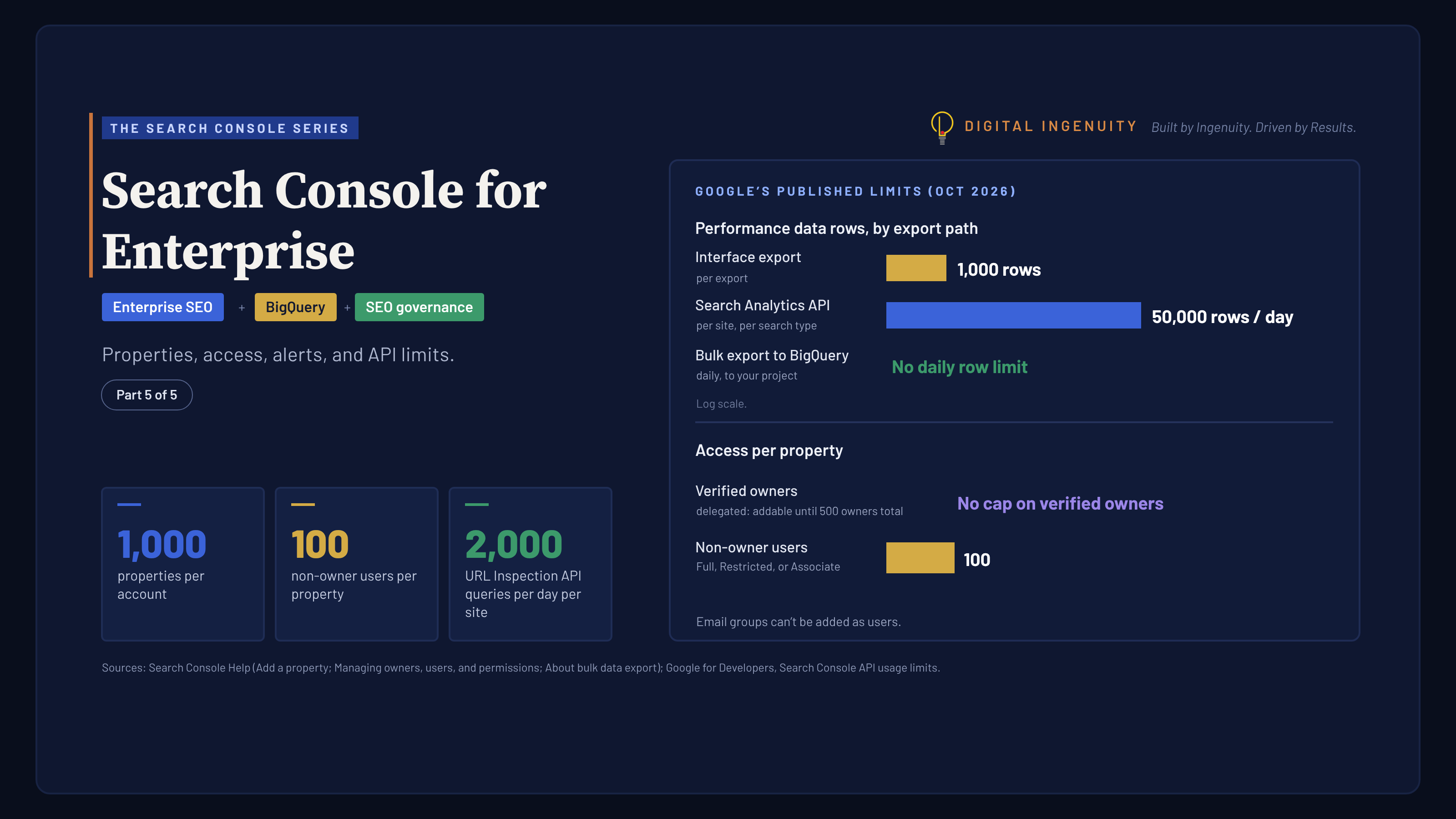
The real reason to do it yourself is control. Search Console has a clear hierarchy: verified owners, delegated owners, full users, and restricted users. Owners can add and remove people and change settings. If every verified owner is removed, the remaining users lose access after a grace period. Google keeps collecting data, but nobody can see it until someone verifies again. We regularly meet businesses whose Search Console was set up by a former agency or a web designer who no longer answers email. Their data still exists, but nobody at the company can see it.
Google’s own advice on hiring an SEO points the same way. If an SEO offers you an audit, Google suggests granting read access to Search Console only, not write access, at that stage. You can only grant access if you own the property.
What you need before you start
- A Google account the business controls. Use a shared role mailbox or an owner’s business account, not a contractor’s personal Gmail.
- Access to your domain registrar or DNS host (GoDaddy, Cloudflare, Squarespace Domains, and so on). This is the most common blocker, so find the login first.
- Access to your website platform. Some platforms (Wix, Shopify, and others) have their own Search Console integration, so check your host’s documentation first.
- Thirty to sixty minutes for the hands-on work. DNS changes can take longer to go live, so start early in the day.
The first-week checklist
You can do this in one sitting, but spreading it across a week gives DNS time to update and Google time to fill in your reports.
Day 1: Choose your property type and verify ownership
Search Console calls each site you track a property. There are two website property types:
- Domain property (for example,
example.com). This includes every subdomain (www, m, shop) and every protocol (http and https). It can only be verified with a DNS record. - URL-prefix property (for example,
https://www.example.com/). This includes only URLs that start with that exact prefix. It supports more verification methods, including an HTML file, an HTML tag, Google Analytics, and Google Tag Manager.
For most businesses, start with a Domain property. It captures the www and non-www versions of your site, plus any old http URLs, in one place. You can add URL-prefix properties for specific sections later.
To verify, Search Console gives you a TXT record to add at your DNS provider. Google notes that manually added records can take up to two or three days before your provider starts serving them, so if it fails the first time, wait a day and try again. Two rules from Google’s verification documentation matter here:
- Don’t delete the DNS record after verification succeeds. Search Console checks for it periodically, and if the token disappears, your permissions expire after a grace period.
- Add a second verification method if you can, such as an HTML tag on a URL-prefix property. That way, a website redesign that strips a tag doesn’t lock you out.
Google also notes that data collection starts as soon as someone adds the property, even before verification, but it takes a few days for data to appear. That’s the strongest argument for doing this on day one: the 16-month history you’ll want next year starts when the property is added, not when you hire someone.
If your site runs on WordPress, Google’s verification page notes that Site Kit is the only WordPress plugin it officially sponsors for Search Console verification.
Day 2: Submit your sitemap and inspect your homepage
A sitemap is a file that lists the pages you want Google to know about. Most platforms create one automatically at an address like /sitemap.xml. Google says a sitemap is optional for small sites (around 500 pages or fewer) where every page is reachable through links from the homepage. It’s still worth submitting, because the Sitemaps report then shows you whether Google can read it.
In the Sitemaps report, paste the sitemap URL and click Submit. A status of Success means Google fetched and processed it. “Couldn’t fetch” or “Has errors” is worth fixing before anything else.
Next, open the URL Inspection tool and inspect your homepage. It shows whether the page is in Google’s index, which canonical URL Google chose, and when it was last crawled. You can also test the live URL and view a screenshot of how Google renders the page. If your homepage isn’t indexed, click Request indexing. Google is clear that this doesn’t guarantee indexing, and there’s a daily limit, so save requests for pages that matter.
Day 3: Connect Google Analytics
Search Console shows what happens before the click: impressions, clicks, and queries. Google Analytics shows what happens after it. Linking them lets you see which search queries lead to engaged visits and key events.
In Google Analytics 4, go to Admin → Product links → Search Console Links and follow the prompts. You need the Editor role on the Analytics property and must be a verified owner in Search Console. A few limits from Google’s documentation:
- One web data stream links to one Search Console property, and the reverse is also true.
- The Search Console reports in Analytics are unpublished by default. Find the collection under Library in the left navigation and publish it.
- Search Console data shows up in both tools about 48 hours after Search Console collects it.
Day 4: Check manual actions, security issues, and indexing
These three reports tell you whether something is already wrong.
- Manual actions. A manual action means a human reviewer at Google found pages that don’t comply with Google’s spam policies. A green check mark means you’re clear. If you just bought a domain or inherited an old site, this is the first thing to look at.
- Security issues. This report flags signs that the site was hacked or is harming visitors, for example with malware or phishing.
- Page indexing. This shows how many of your URLs are indexed and why others aren’t. Don’t panic about a long “Not indexed” list. Google says plainly that you shouldn’t expect every URL to be indexed. Redirects, duplicates, and deliberately blocked pages belong there. What you’re checking is that your important pages are indexed. Google even notes that sites under about 500 pages may not need this report and can check key pages with a
site:search or URL Inspection instead.
The same logic applies to the Crawl Stats report under Settings. Google calls it a report for advanced users and says sites with fewer than about a thousand pages shouldn’t need it. Skip it in week one.
Day 5: Learn what the data can and can’t tell you
Open the Performance report. It defaults to the last three months; switch the date range to the longest available. Search Console keeps 16 months of data. Before you read anything into it, know these rules from Google’s documentation:
- Impressions count when a link to your site appears on the current results page, even if the person never scrolls to it. Carousels and expandable sections are the exception.
- Average position is the topmost position your site held, averaged across searches. Google itself calls it a complex metric that can mislead.
- AI Overviews and AI Mode are included in the Web search type. A click on a link inside an AI Overview counts as a click, and the overview occupies a single position.
- Rare queries are hidden for privacy, so the query table won’t add up to the chart total.
- The interface exports 1,000 rows at most.
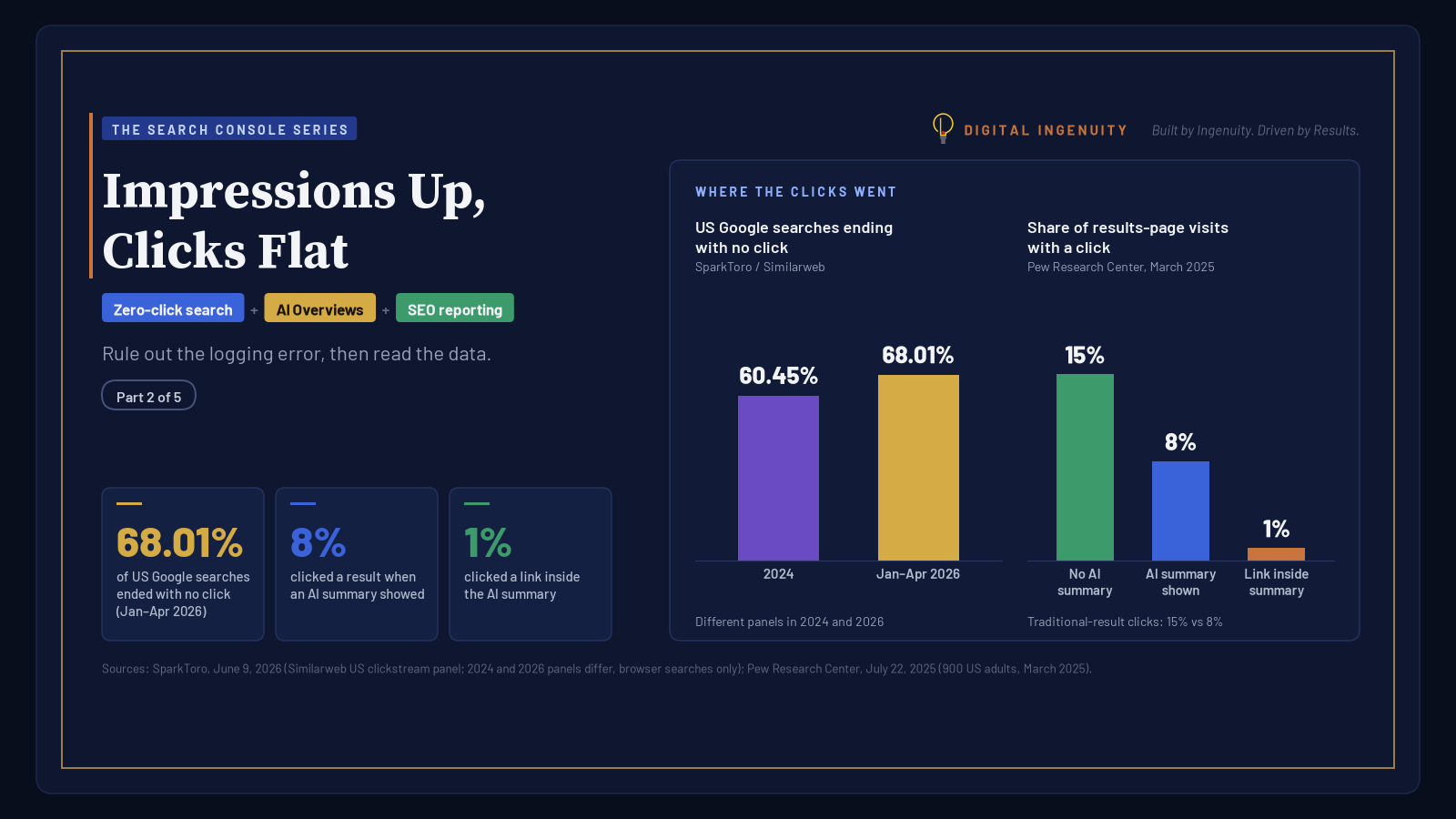
- Impressions from May 13, 2025 to April 27, 2026 were over-reported. Google’s data anomalies page says a logging error affected impressions, CTR, and average position (not clicks) in that window. If your property is older, don’t build an impressions baseline that spans those dates.
We cover how to read these numbers in Impressions Up, Clicks Flat. For definitions, keep our Google Search Console terms glossary open in another tab.
Days 6–7: Set up access, alerts, and a baseline
- Add people, not owners. Under Settings → Users and permissions, add an agency or freelancer as a Full or Restricted user. Keep ownership inside the company. Each user needs a Google account; Google doesn’t let you add an email group. When someone leaves, remove them and any verification tokens they added, or they can re-verify. The same page lists unused ownership tokens and the ownership history.
- Make sure alerts reach a real person. Search Console emails owners when Google finds new issues on the site. Google says there’s no need to log in every day, and suggests checking about once a month or whenever you change the site.
- Check the Search generative AI setting. Each property now has a control under Settings → Search generative AI. Include is the default and lets your content appear in AI Overviews, AI Mode, and generative AI features in Discover. Excluding the site removes it from those features but, per Google, isn’t used as a ranking signal elsewhere in Search. Leave it on Include unless you’ve made a deliberate decision, and write that decision down.
- Write down your baseline. Record last month’s clicks, impressions, indexed page count, and your top ten queries and pages. Every future report gets compared with this snapshot.
What to ask an SEO once Search Console is running
With your own data in hand, the hiring conversation changes. Instead of “what can you do for us?”, you can ask:
- “Here’s our Page indexing report. Which of these issues matter, and which are normal?”
- “Here are our top queries. Where do you see opportunity, and how will we measure it?”
- “Do you follow Google Search Essentials, and will you explain every change you make?” (Google suggests asking this one.)
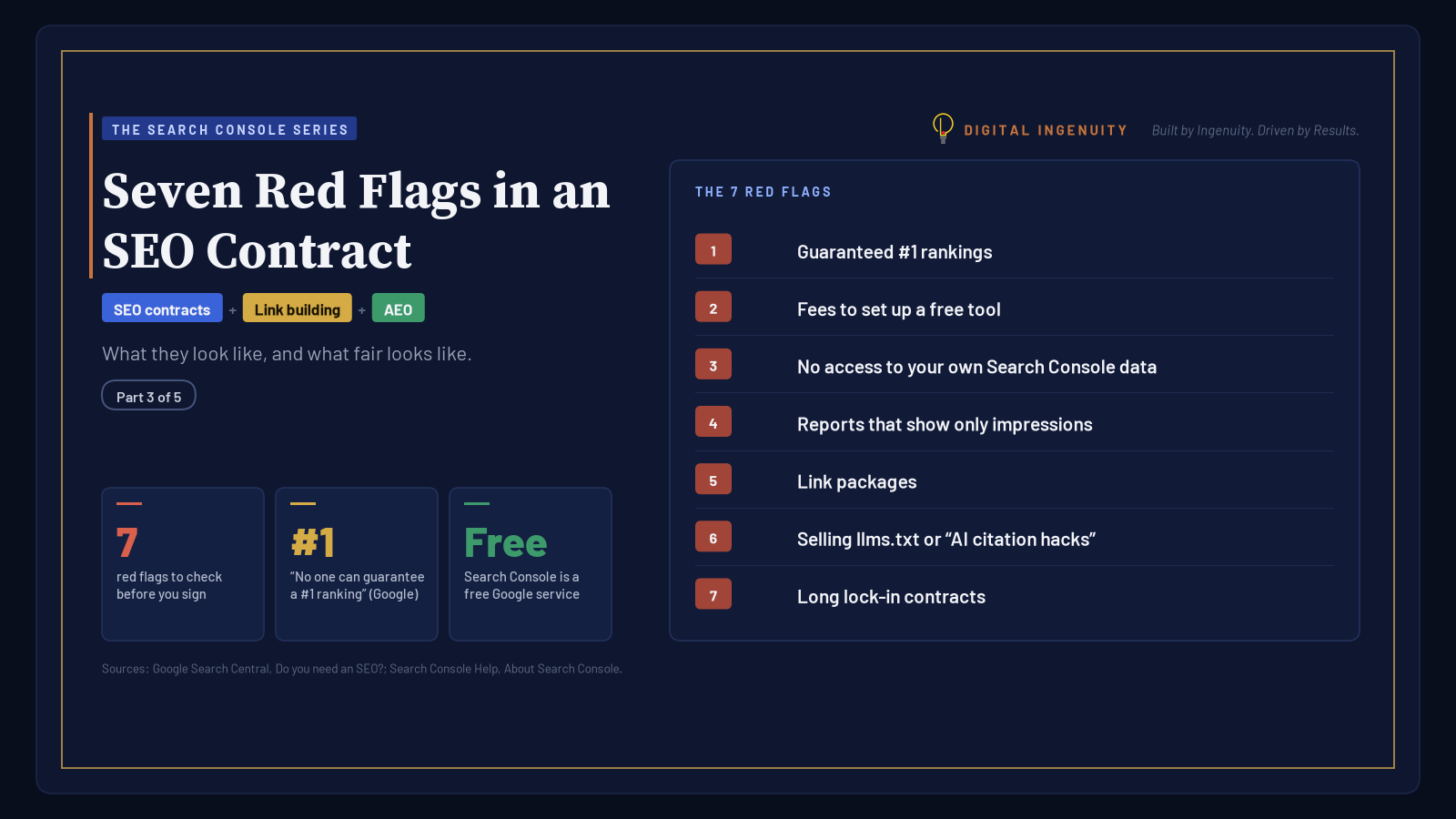
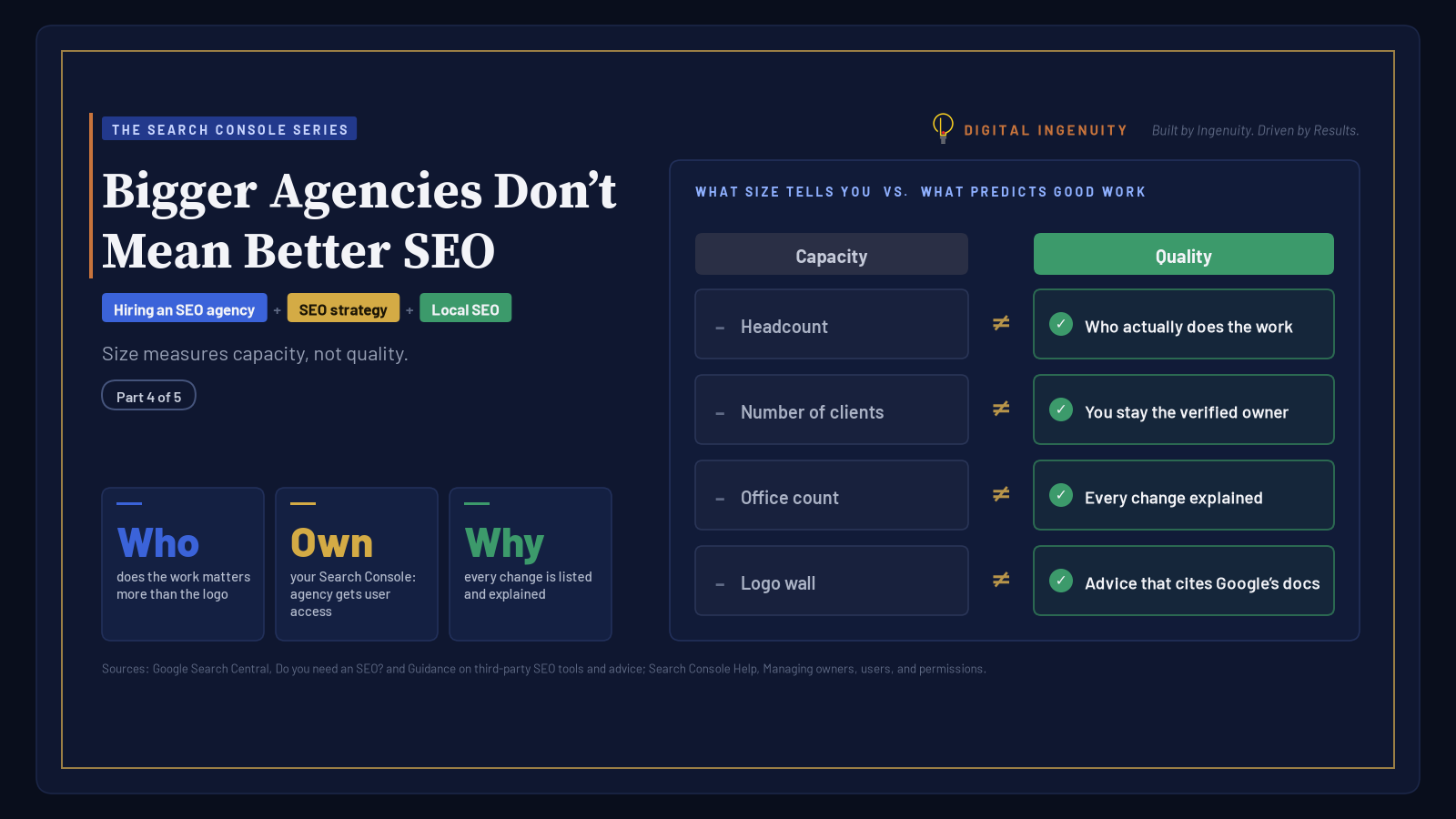
A good partner welcomes these questions, and that’s the standard we hold our own SEO service to. For Dallas-Fort Worth businesses, a partner should also be able to explain why your results look different in Dallas than in Plano or Fort Worth. If a vendor wants to set up “their” Search Console, or charges a premium fee for it, read our guide to red flags in an SEO contract. Once data starts flowing, our Search Console walkthrough explains what each report is telling you. And if you’re still weighing doing the work yourself against hiring help, we laid out the trade-offs in DIY SEO vs. agency SEO.
Common day-one mistakes
- Verifying only
https://www.as a URL-prefix property and missing data from other versions of the site. A Domain property avoids this. - Requesting indexing for every page. Submit a sitemap instead. URL Inspection requests have a daily limit.
- Judging success after a week. New properties need a few days just to fill in, and Google’s starter guide says changes can take anywhere from hours to months to show up, so wait a few weeks before judging an individual change.
Have questions about your own setup? Contact us for more information.
Related reading
Sources
- About Search Console (Search Console Help)
- Get started with Search Console (Google Search Central)
- Add a website property to Search Console (Search Console Help)
- Verify your site ownership (Search Console Help)
- Managing owners, users, and permissions (Search Console Help)
- Sitemaps report (Search Console Help)
- URL Inspection tool (Search Console Help)
- Connect Search Console to Google Analytics (Analytics Help)
- Manual actions report (Search Console Help)
- Page indexing report (Search Console Help)
- What are impressions, position, and clicks? (Search Console Help)
- A deep dive into Search Console performance data filtering and limits (Search Central Blog)
- Search generative AI control (Search Console Help)
- Do you need an SEO? (Google Search Central)
- Crawl Stats report (Search Console Help)
- Data anomalies in Search Console (Search Console Help)
- SEO Starter Guide (Google Search Central)